How to Create Alerts

Stock alerts can be set up on the Webull App easily, notifying you of any price actions, financial results and technical conditions that might affect the stocks you want to follow closely.
Let’s say the current stock price is USD30 a share, and you want to be alerted when the stock price reduces to USD28 but don’t want to wait around watching the price. You can set an alert on the Webull App, where you will be notified when the stock price falls to USD28. Moreover, as mentioned above, alerts can be set with many parameters such as changes in percentages, volume, and abnormal price movement. After establishing your settings, you will receive a push notification whenever your alert settings are met.
Now that you know how alerts work, we will show you how to set different alerts on the Webull App in this article.
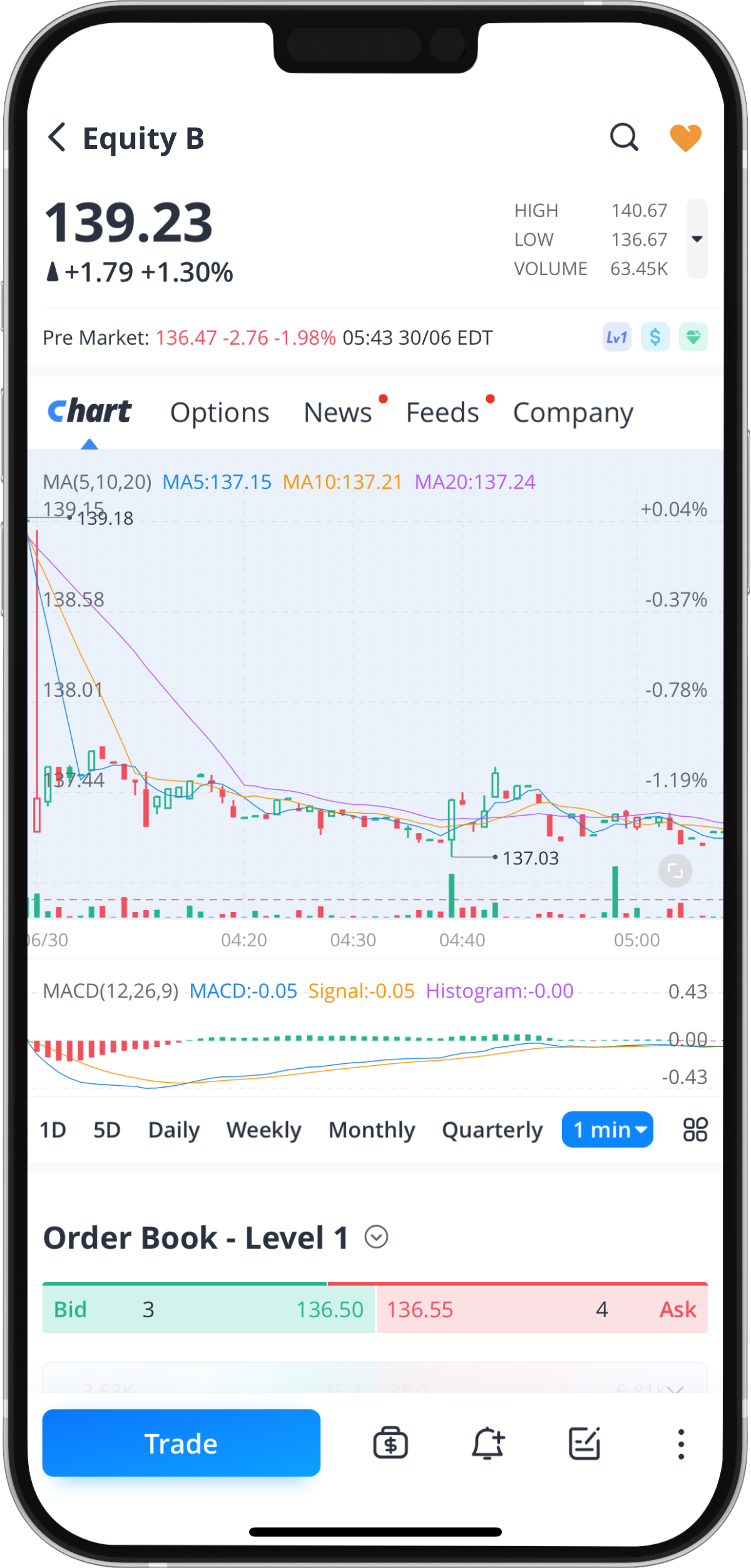
Step 1: Go to a stock’s details page
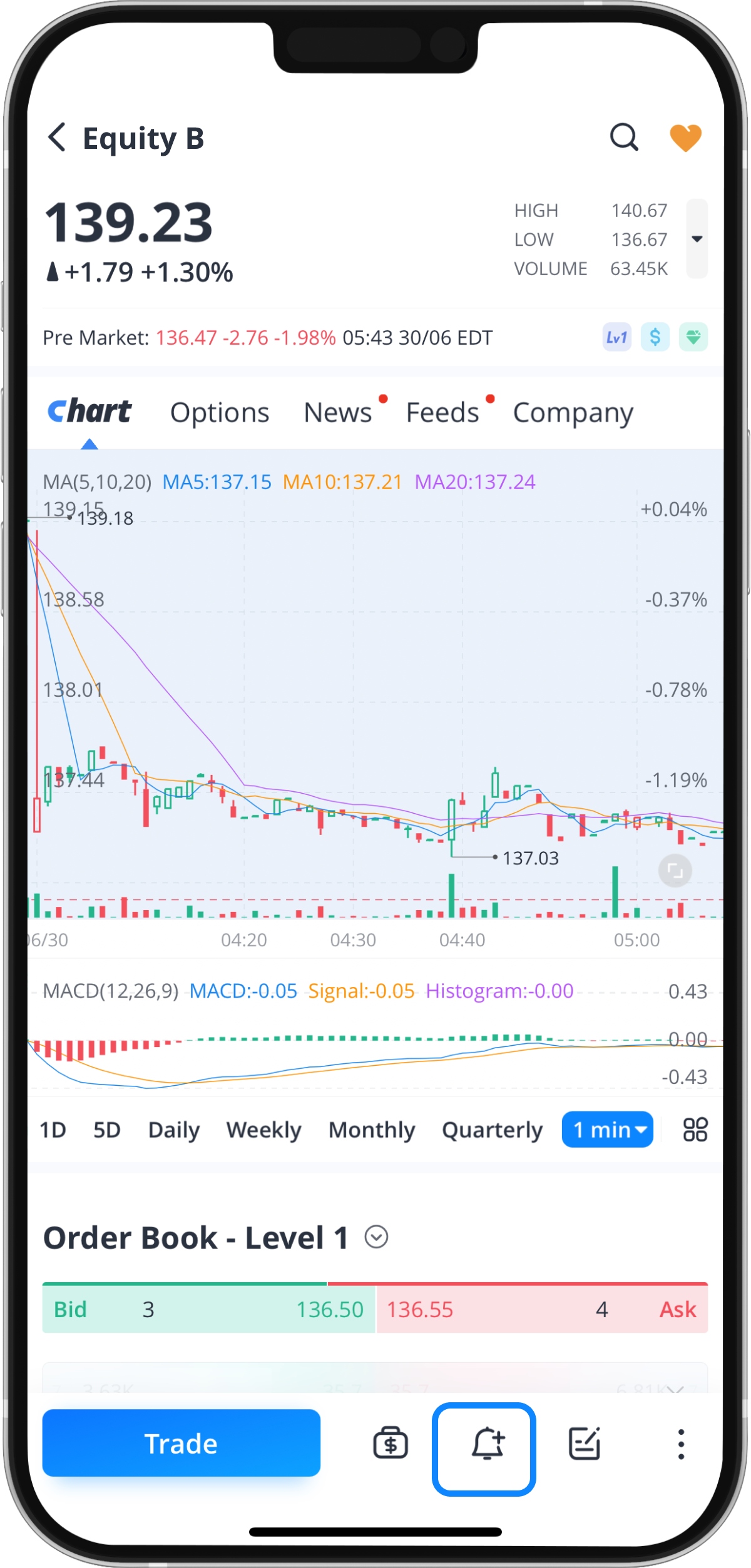
Step 2: Tap the “Alert” Icon at the bottom of the screen
Step 3: Activate Alert Messages
You will need to turn on the alert button before you begin customising the alert.
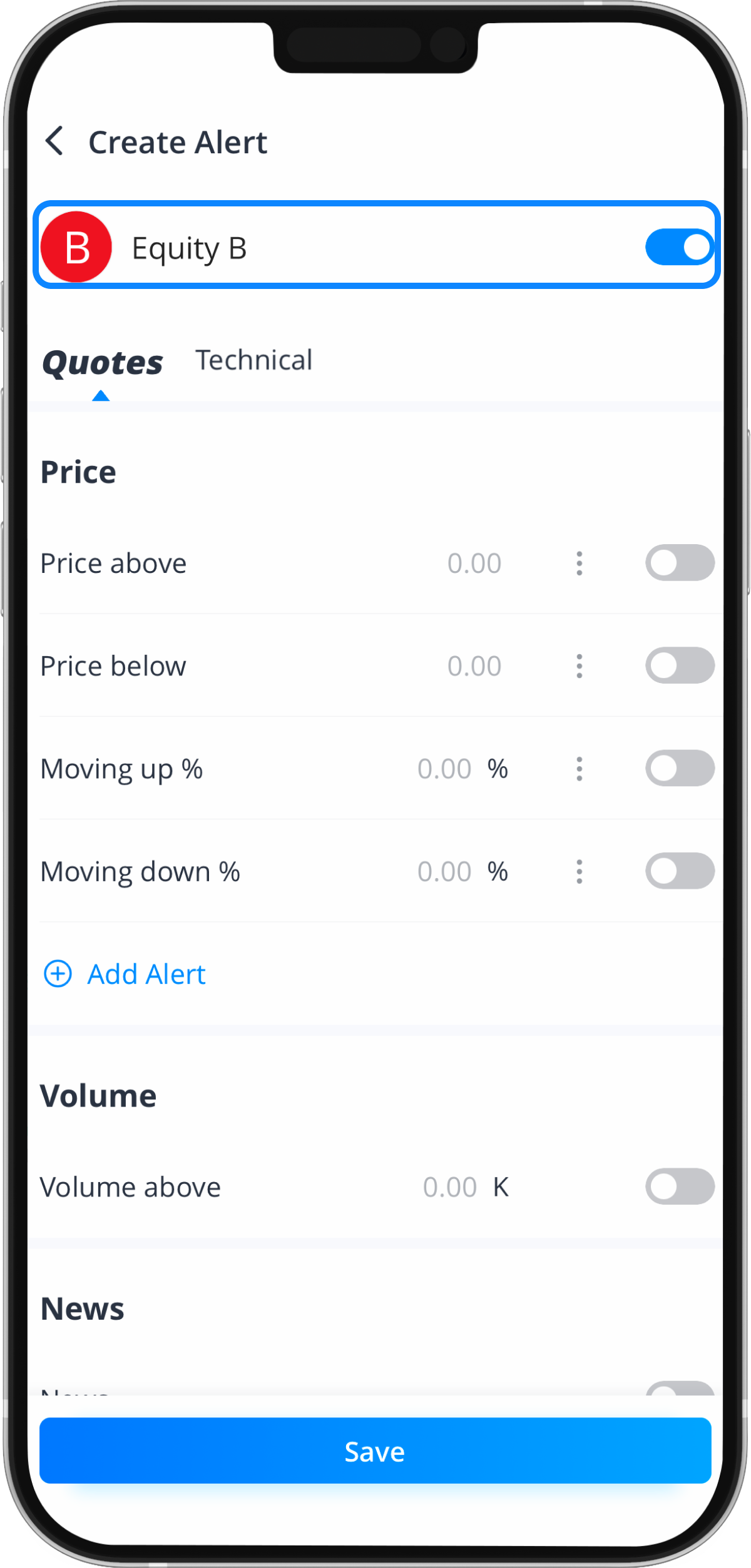
Step 4: Customise Your Alert
You have different parameters to set for each security on the Webull App.
Quotes Alerts
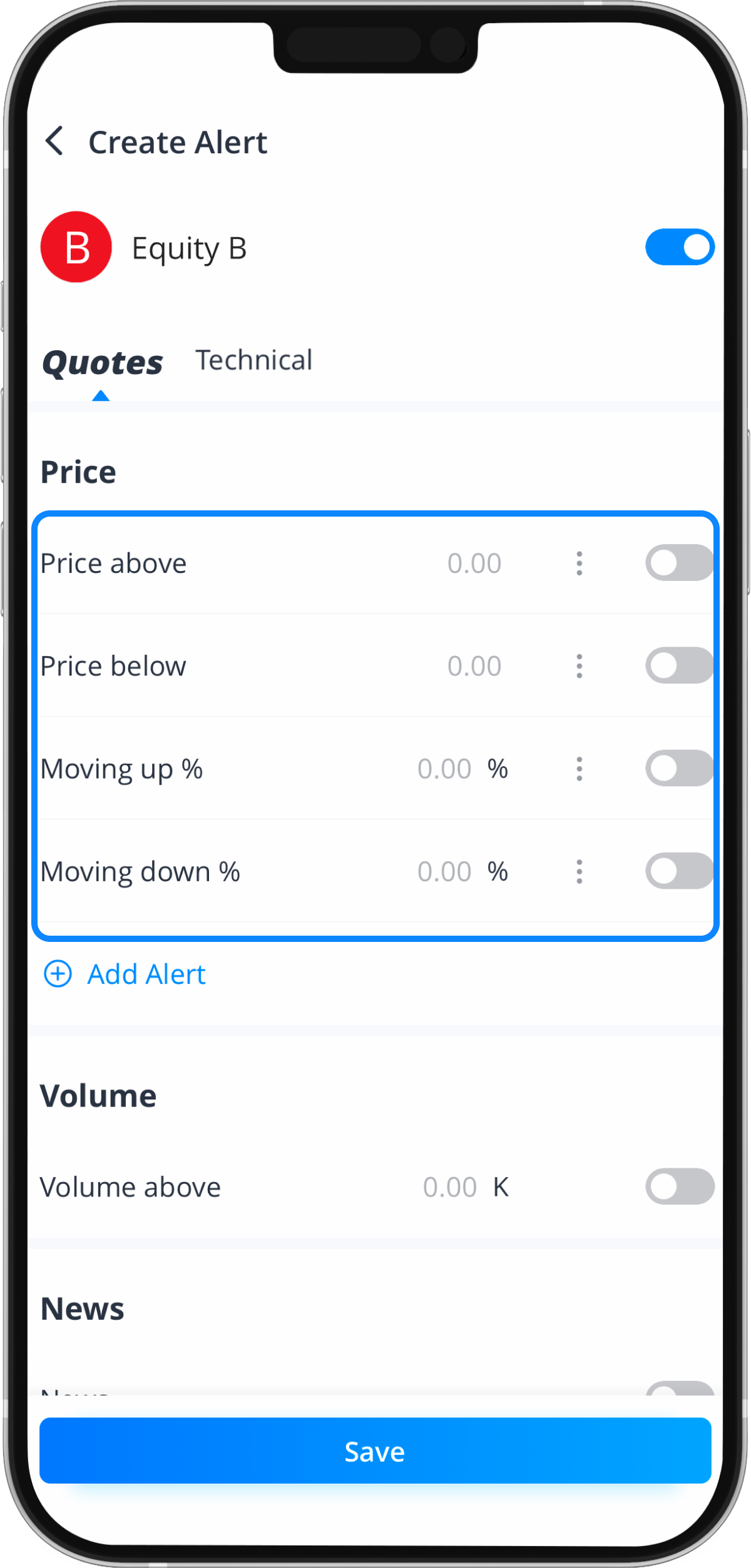
1. Price Alerts
Indicate and select your price range for your price alerts for the respective security.
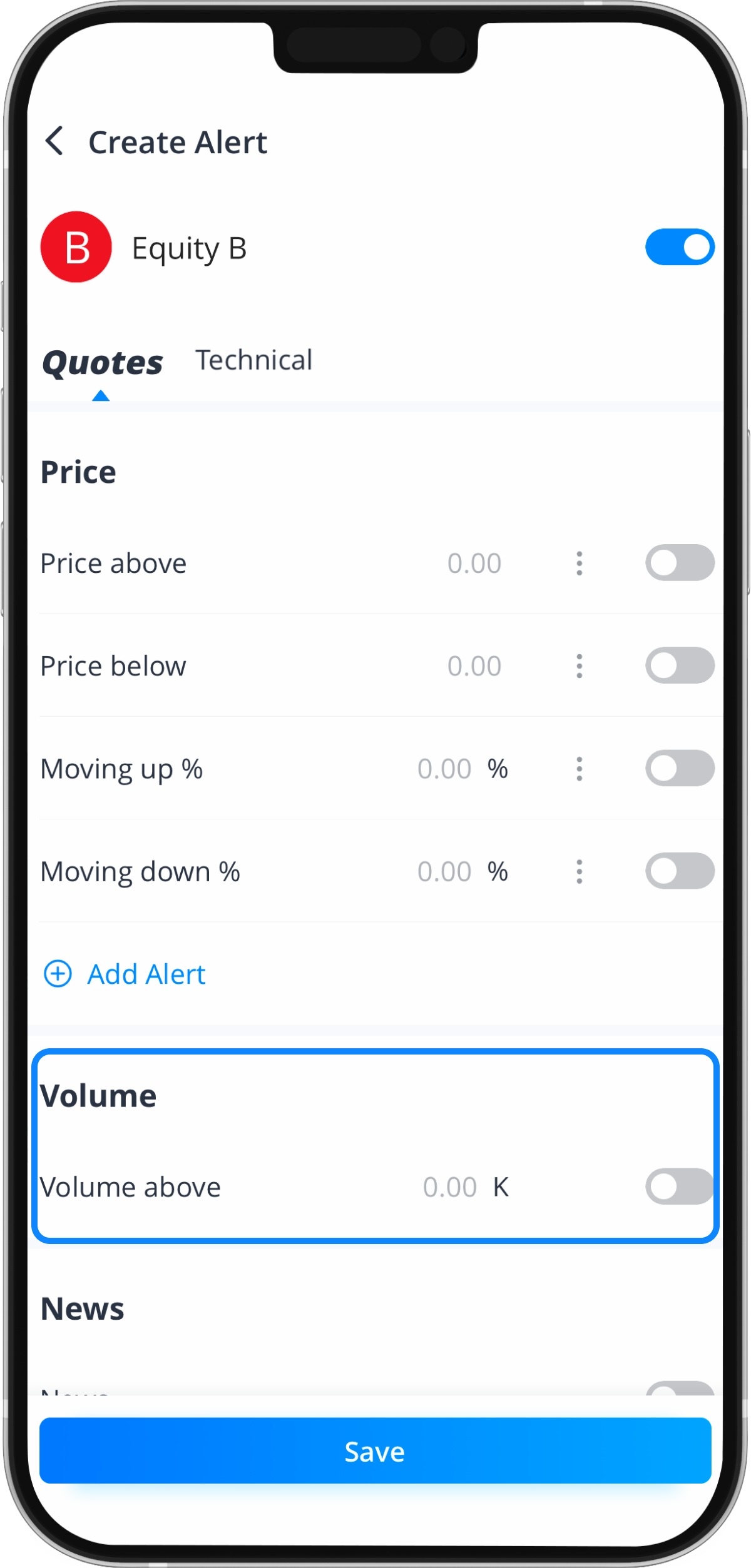
2. Volume Alerts
Indicate and select your trading volume range for the respective security.
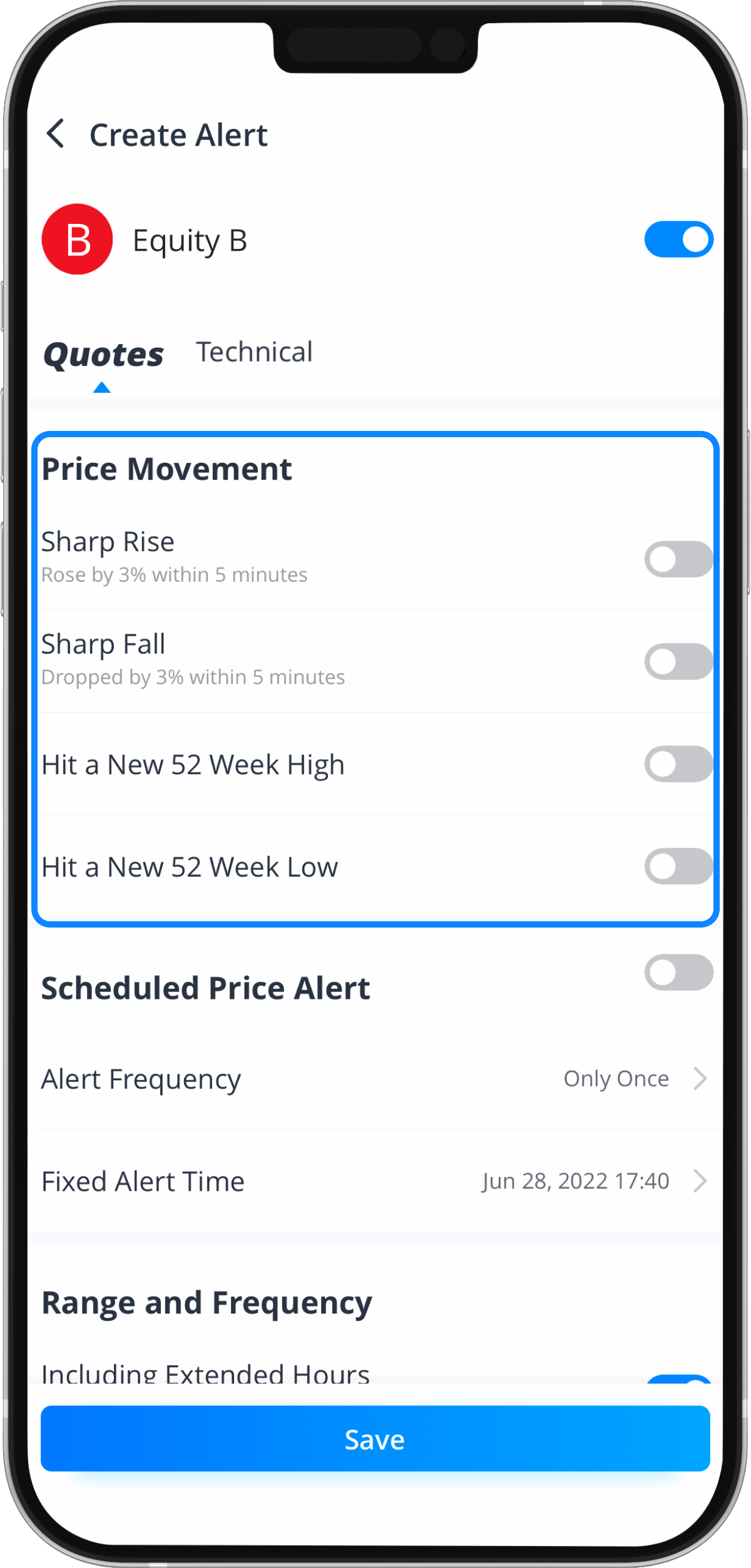
3. Price Movement Alerts
- Turn on “Sharp Rise” or “Sharp Fall” to receive an alert when the security’s price moves above or below 3% within 5 minutes.
- Turn on “Hit a New 52 Week High” or “Hit a New 52 Week Low” to receive an alert when the security’s price hits the highest or lowest point within the last 52 weeks.
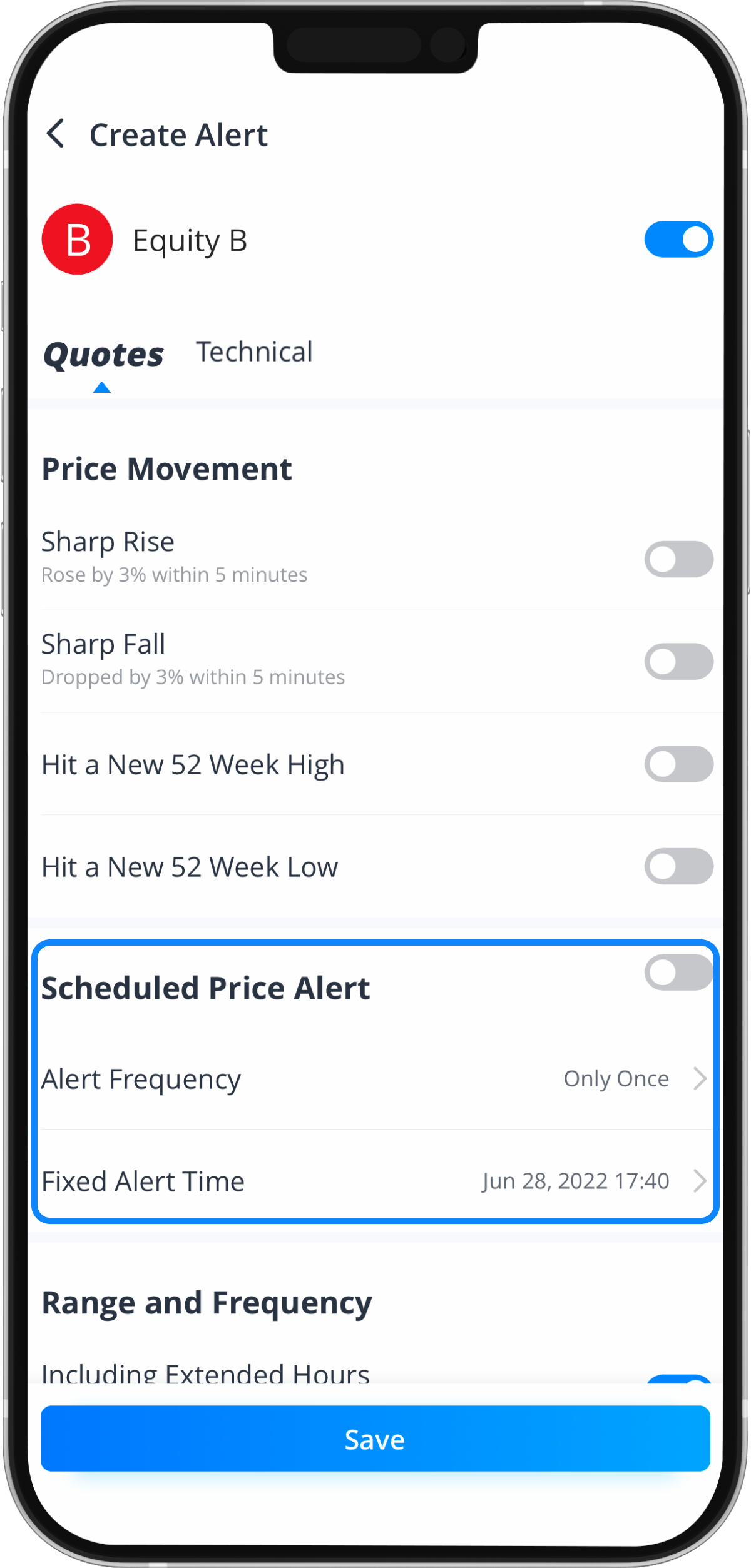
4. Scheduled Price Alerts
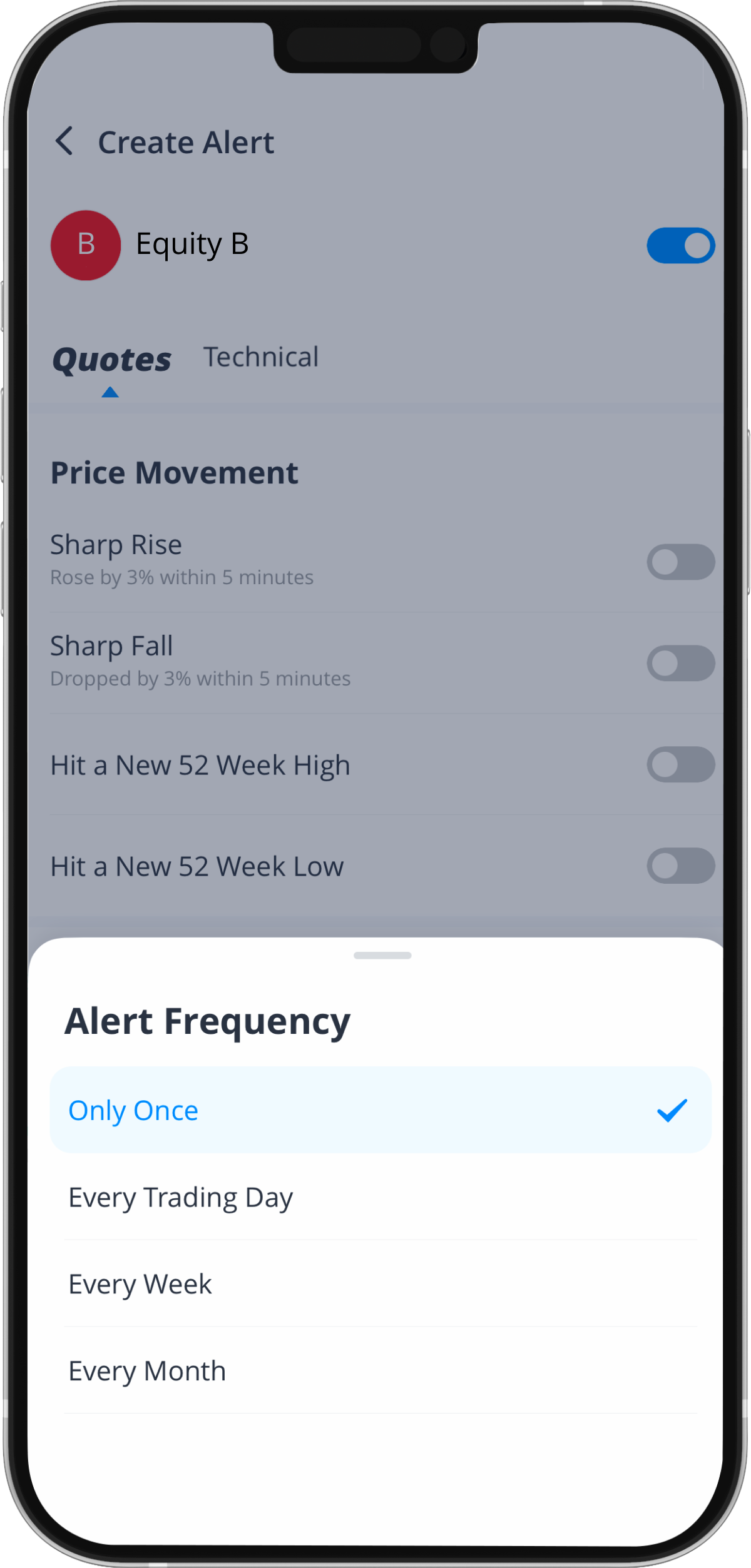
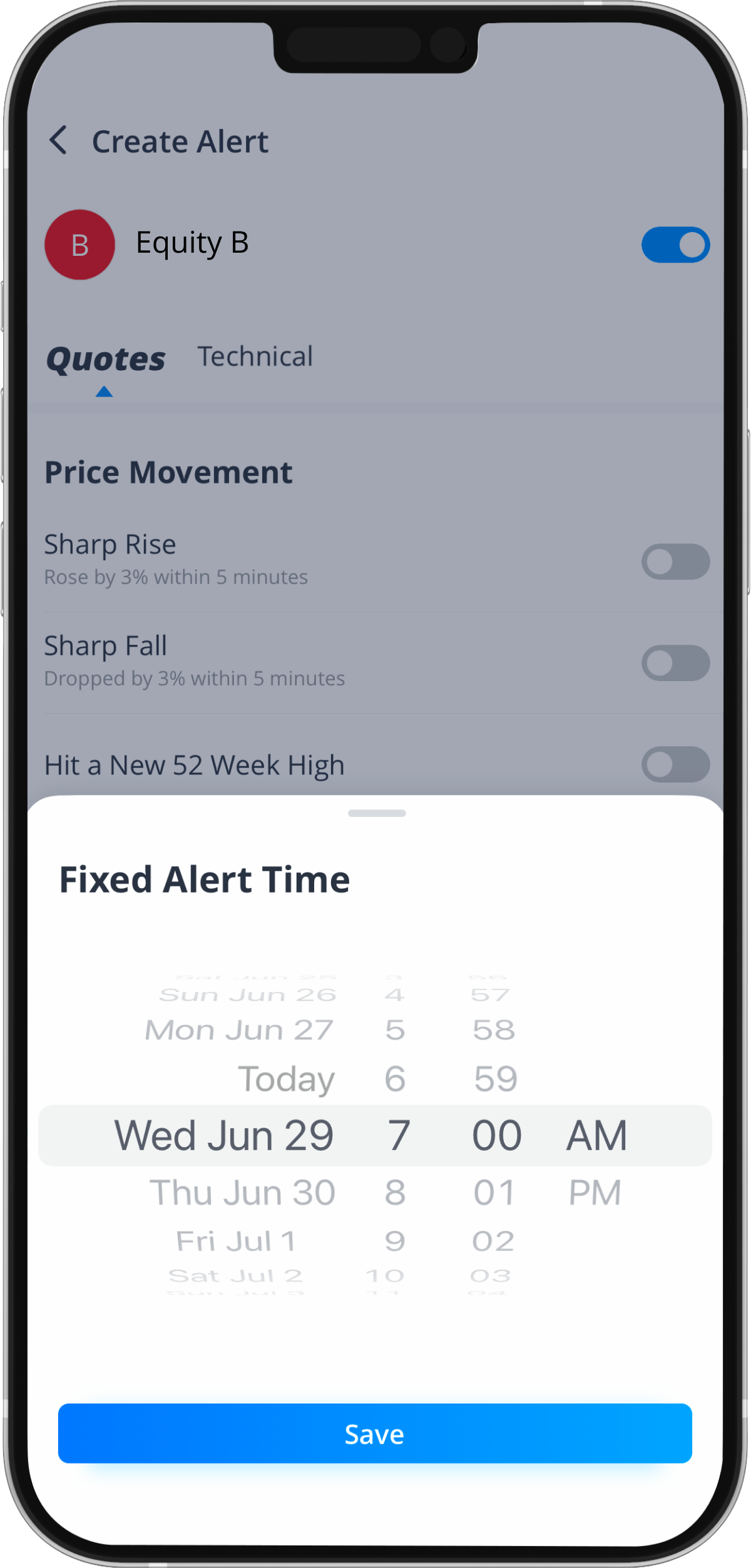
Turn on “Scheduled Price Alert” to schedule an alert under your ideal time or alert frequency.
For example, you can set an alert on 17 May 2022, 10:22 and only be alerted once for a specific security.
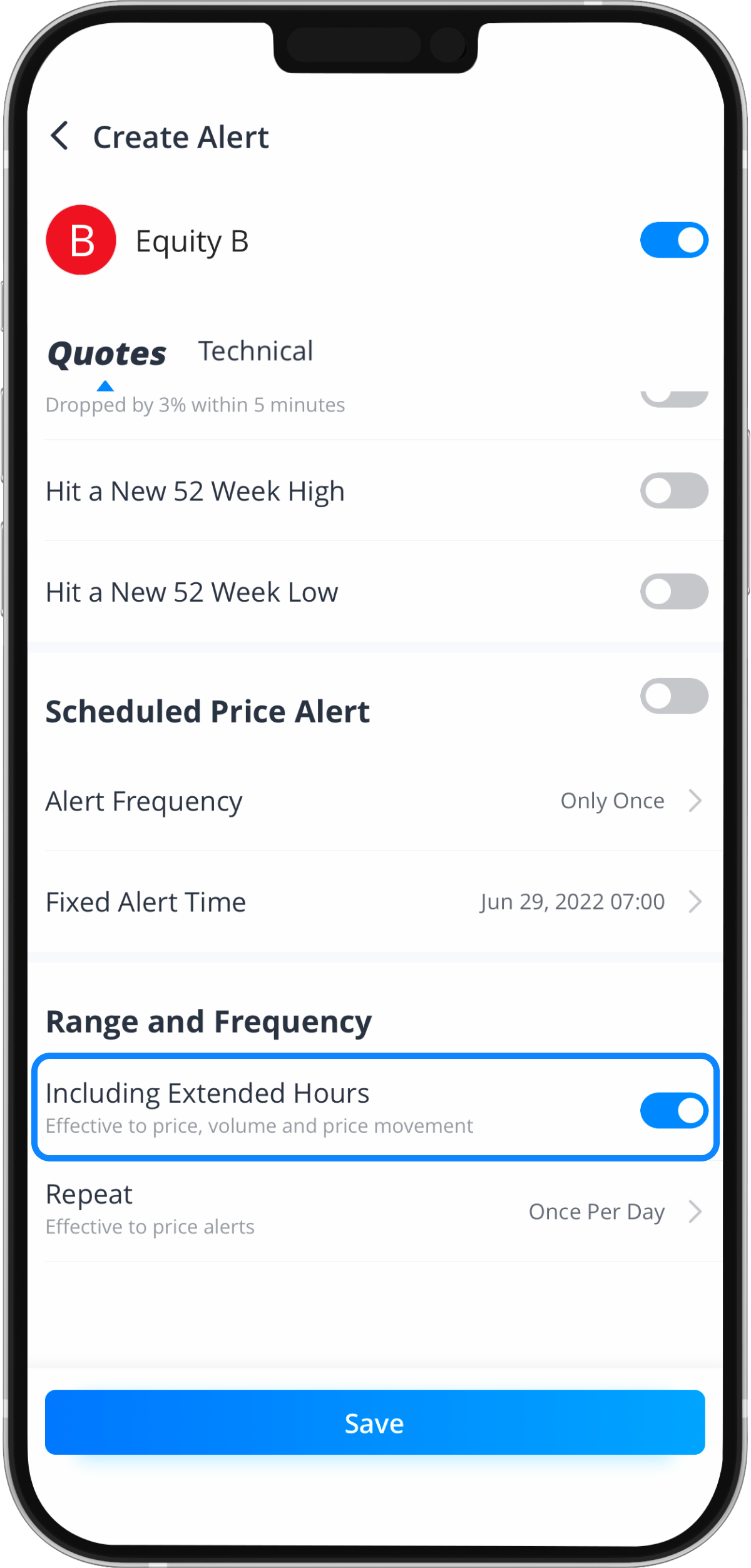
5. Activate Extended Hours Alerts
You can turn on ‘Including Extended Hours” to receive alert messages during the extended trading hours.
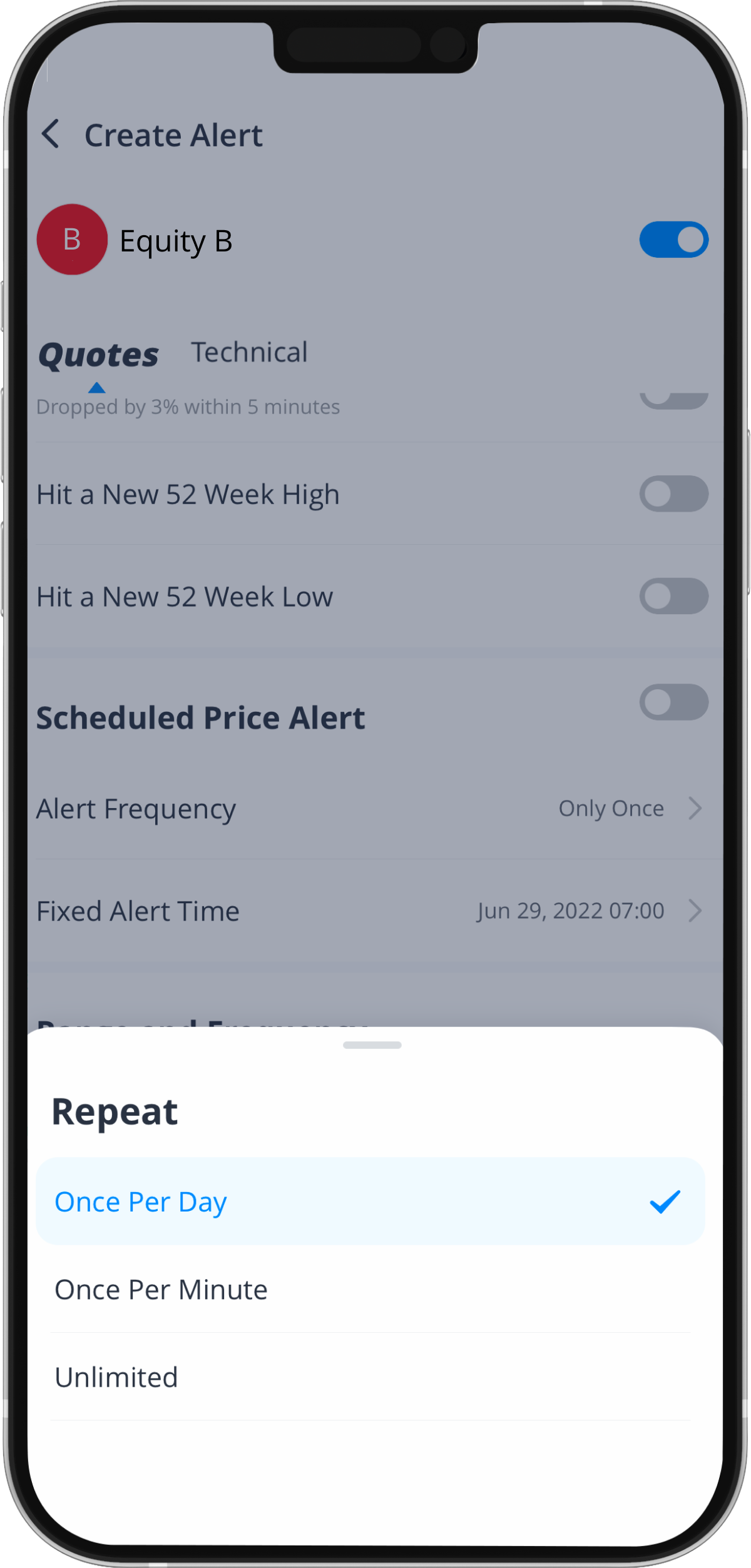
6. Set Alert Frequency
Technical Alerts
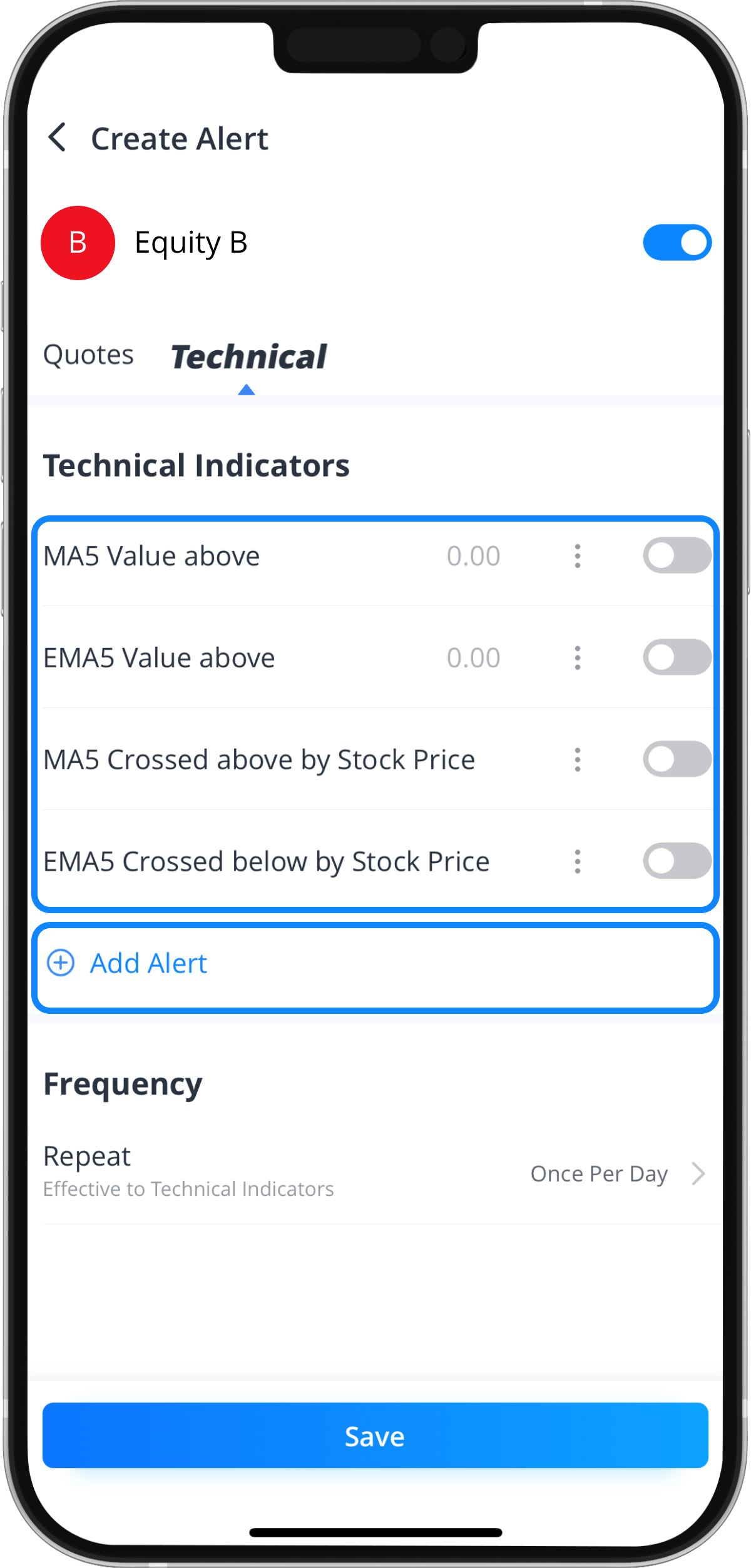
1. Technical Indicators Alert
Step 1: Tap “Add Alert”
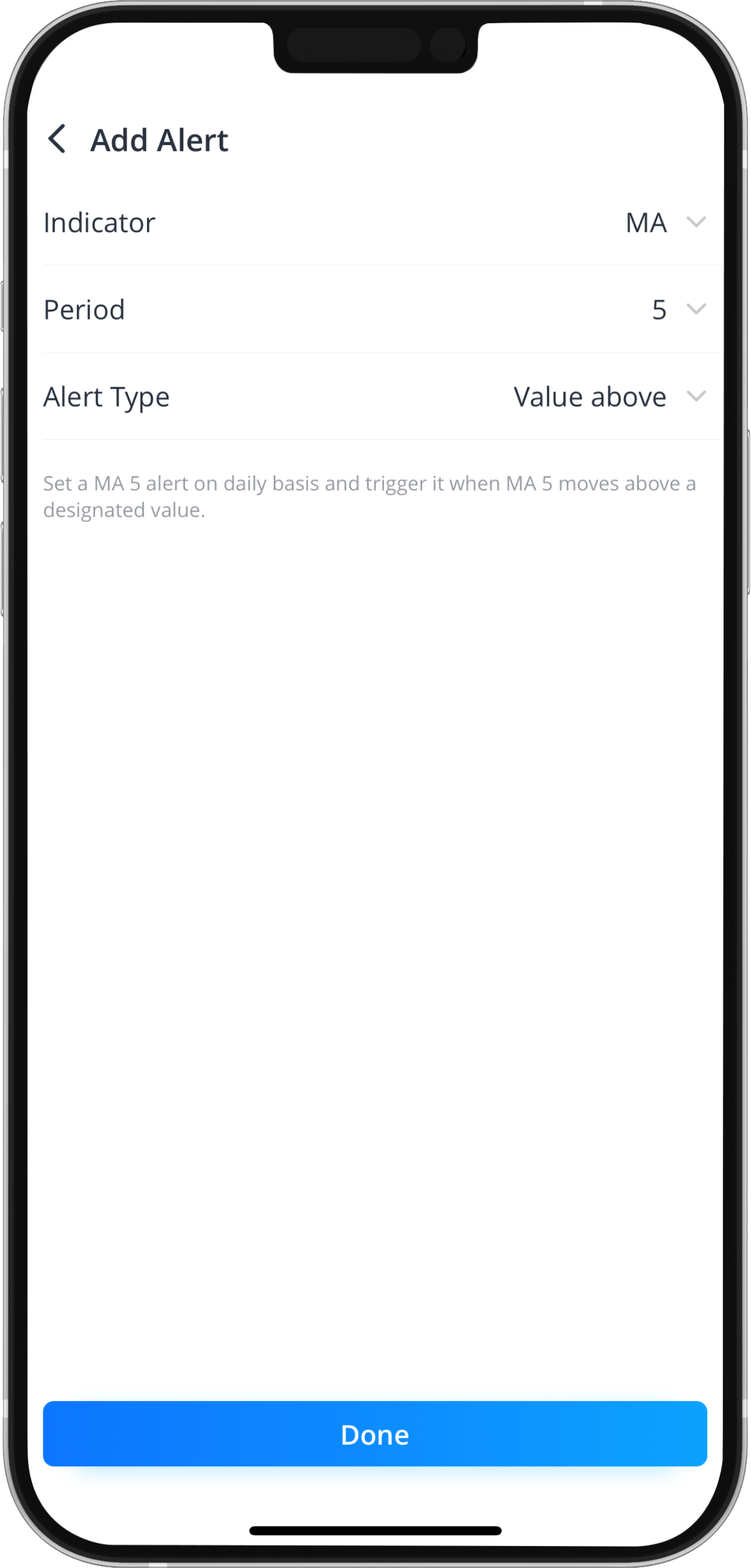
Step 2: Select Indicators, Period and Alert Type
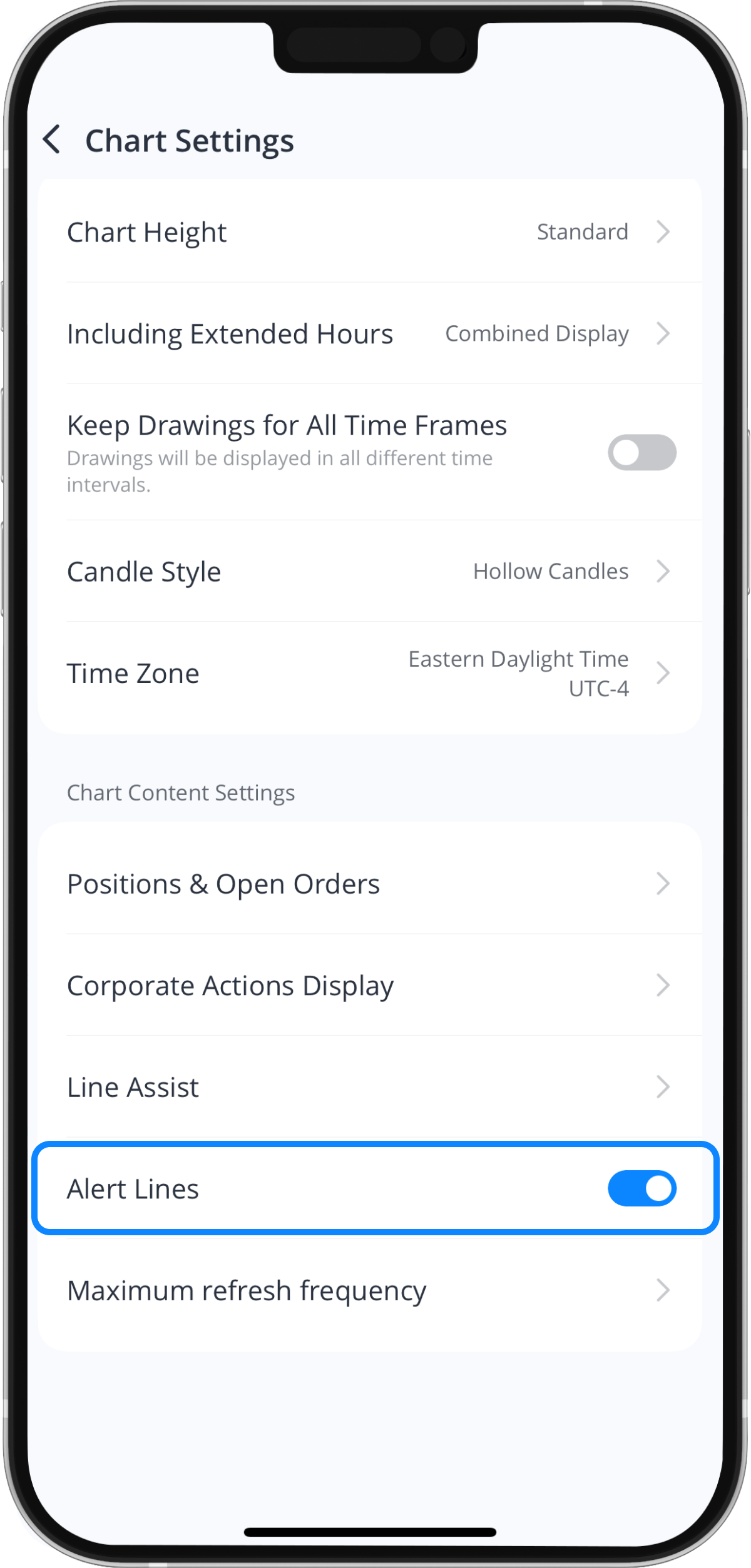
Activate Alert Lines
An alert line will be displayed in the chart once you have saved your changes, but you must ensure it is turned on in the chart settings.